Jake Buck
Tasker Navigation Overlay
This tool allows you to control your music app while using a navigation app on your Android phone. It's useful if you use an aux cord to connect to your car's stereo. In my setup I use GoneMad music player, Here WeGo navigation, and Tasker automation tool.
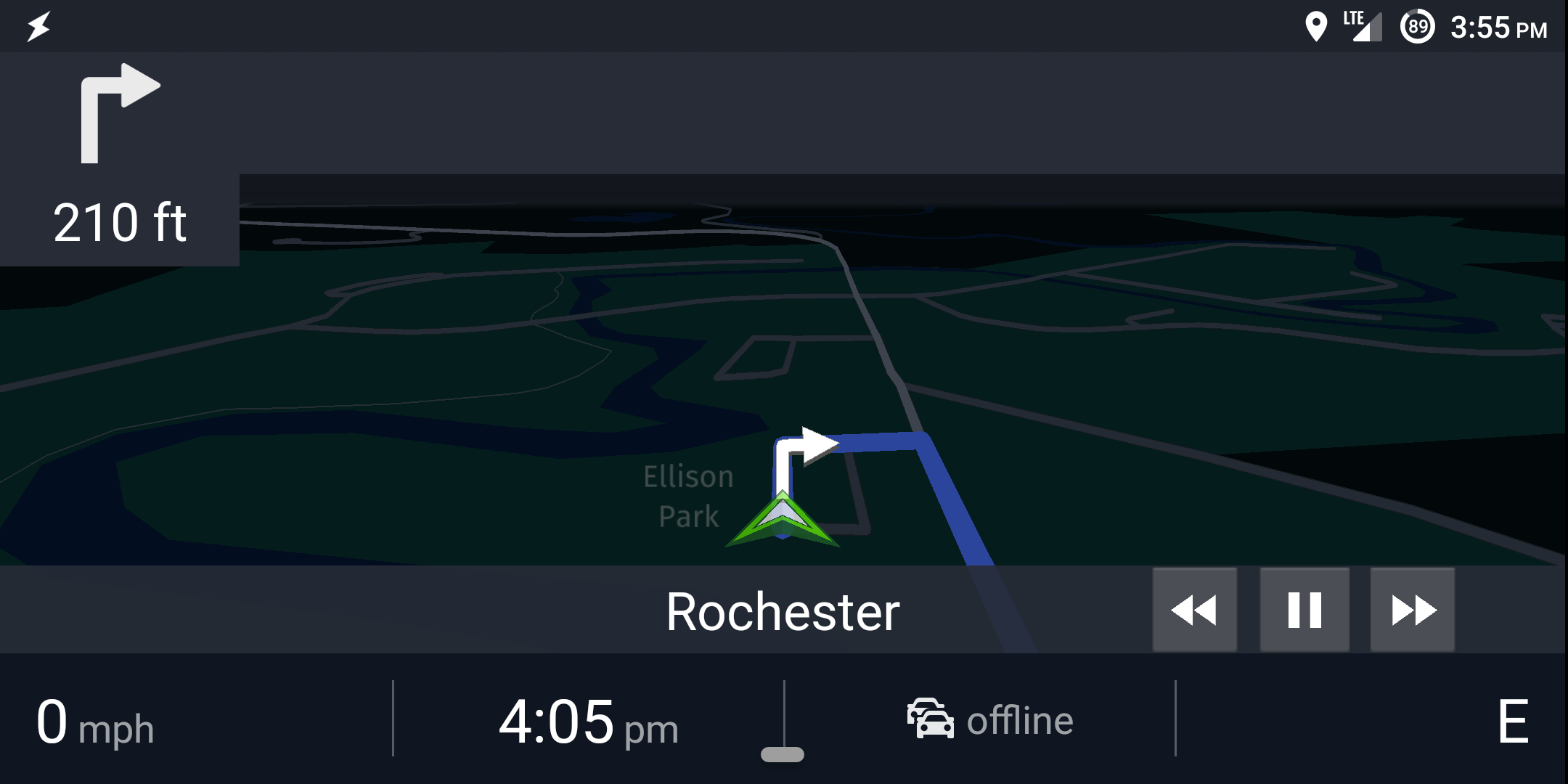
And here it is off:
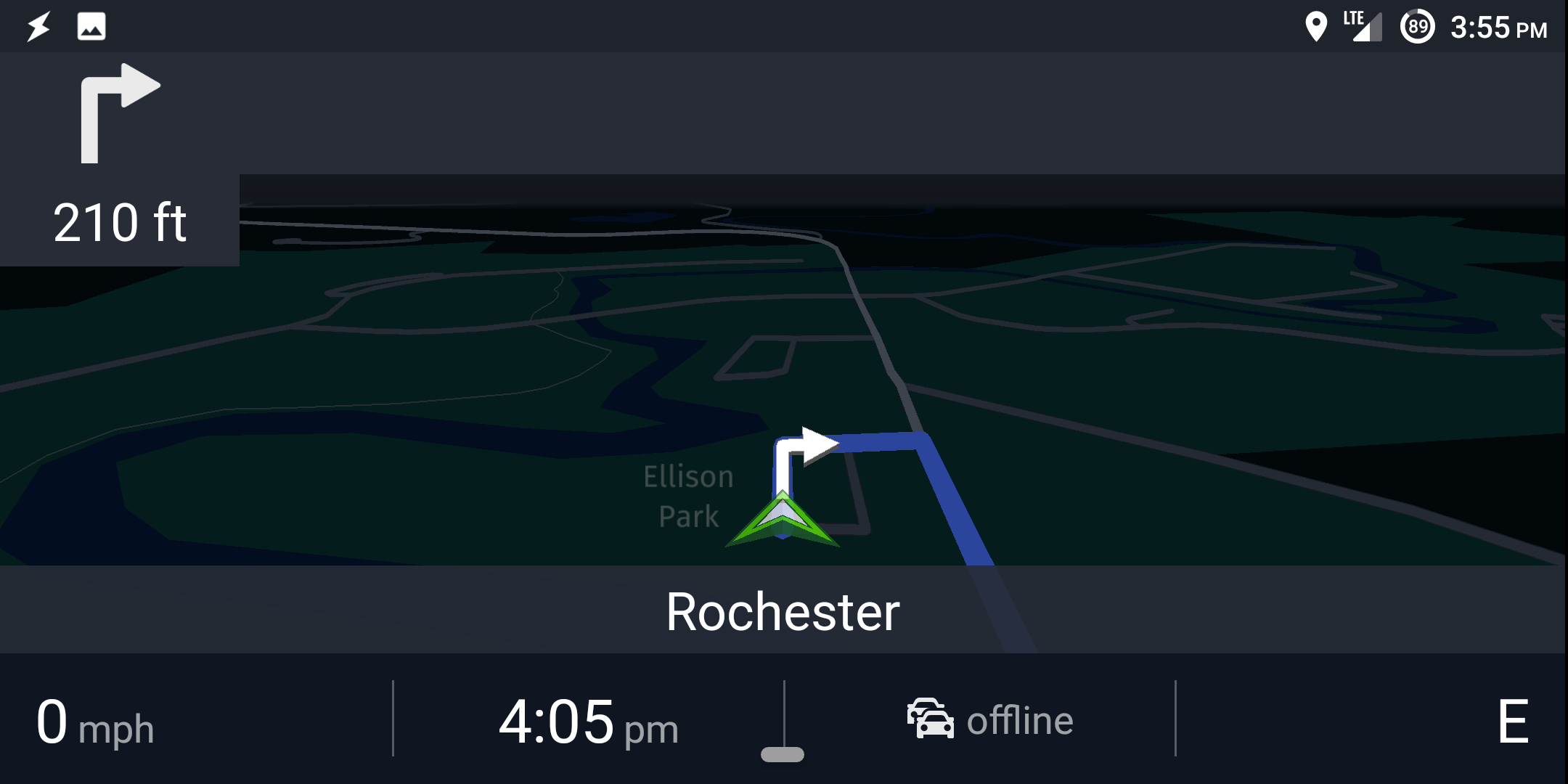
All it takes to create this effect is one scene with three buttons [download .xml] and a profile [download .xml]. You can download the two xml files and import them into Tasker by long-pressing on the home icon on the bottom left of Tasker's screen and selecting "Import" from the menu that pops up and then edit them from there to suit you if you'd like, or continue reading for a quick run-through of how to create it yourself.
First, I created a new scene, and added three buttons to it. I had to play around with the sizing of them but settled on 140 x 140 by taking a screenshot of my nav app and measuring the height of the ui element I wanted to place them over. When you click on a button in the scene editor you can assign text or icons to the button, as well as actions. Under the "Tap" tab, add a "Media Control" action to the task that gets called when you tap the button, and have it send whichever command you want that button to control (could be next, previous, shuffle, play/pause, etc), specifying your music app as the recipient.
Once you have all the buttons set up the way you want, head over to the "Profiles" tab of Tasker and create a new profile. I chose to have the overlay show only when the nav app is in front and my phone orientation is landscape, that way it doesn't show when I'm typing an address into the app (as I hold the phone upright while typing), only when I put it sideways in its mount. To add more than one condition for a profile long-press on the first condition and hit "Add". For the action associated with the profile choose "Show Scene", fill in the name of the scene with your buttons, and set "Display As" to "Overlay, Blocking". This will let the scene catch button presses but will block ui interaction to the app below the scene area, so make sure your scene is only large enough as the buttons.
The last tricky part is getting the scene into the right position. I found it easier to hit the 'criss-cross' button next to the two "Position" entries to deal with actual numbers instead of the default slider which I found to be inaccurate and hard to dial in. To find where to place the scene I loaded Tasker and Here WeGo and toggled back and forth between them while tweaking the position settings. Took a few times but I got there. Then go back to the "Profiles" tab of Tasker, long-press on the action for the profile that you created and hit "Add Exit Task", then add a "Hide Scene" task to make the overlay hide when you close your nav app or switch to another app.
As always, if you have any questions email me at jakebuck@gmail.com.
AutoQoS
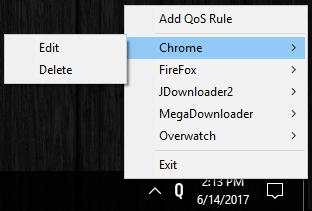 AutoQoS is a daemon app that will sit in your system tray and allow you to create, edit, or delete QoS rules on Windows 7 and above. These rules are used to prioritize network traffic on your machine. Normally this is done at the router but not everyone has access to those settings and not all routers are easy to configure.
This program is useful if one application tends to slow down traffic to other applications you are using. Downloading something in the background and it's slowing down your game? You can increase the priority of the game's traffic and play as if that download wasn't happening! There are lots of cases where a local QoS is ideal.
Download: AutoQoS.exe
Source: AutoQoS.ahk (written in AutoHotkey)
View Page: 1 2 3 4 5